.png)
 2 hours ago
5
2 hours ago
5
Chalkie is an AI teaching platform designed to help teachers create those resources from a topic, grade level, and curriculum framework.
It can produce complete lesson slides, worksheets, and activities, while allowing teachers to edit the result before taking it into the classroom.
For U.S. educators, Chalkie supports standards including Common Core, NGSS, TEKS, and C3. It can also work from existing teaching materials, so teachers can upload a file or provide a website as the starting point instead of beginning with a blank page.
What is Chalkie?
Chalkie is an AI-powered lesson and resource generator built for classroom teachers. Its main job is to turn a teaching idea into a classroom-ready lesson.
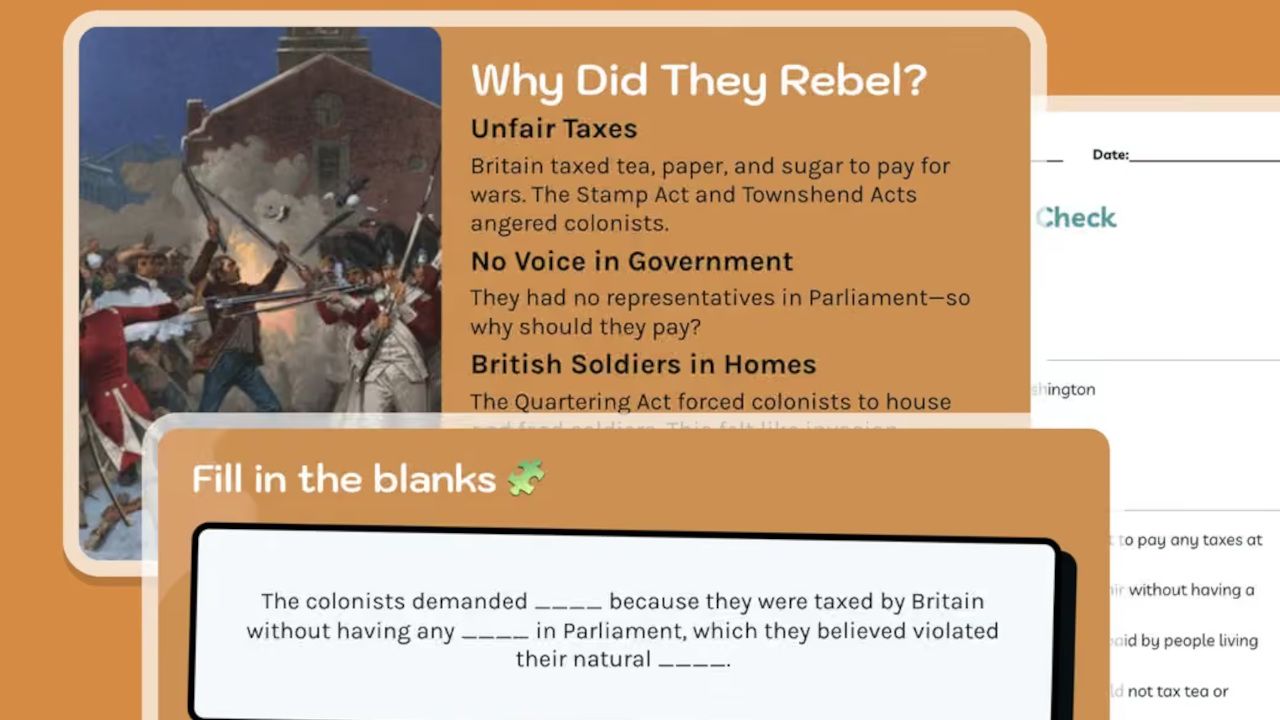
Enter a topic, subject, grade level, and curriculum framework and Chalkie can generate a structured slideshow containing learning objectives, key vocabulary, activities, and supporting content. The resulting slides can be edited within Chalkie or exported to Google Slides, PowerPoint, or PDF.
It can also create worksheets and classroom activities, including differentiated versions. So Chalkie is useful beyond the initial lesson presentation, especially when a teacher needs several resources covering the same topic.
For schools, the platform is designed to support a more consistent approach to lesson creation across a teaching team. Teachers can share resources, while school leaders get administrative controls and centralized billing.
How does Chalkie work?
Start by choosing what you want to teach. Chalkie asks for the topic, subject, grade level, and relevant curriculum or standards framework, after which it generates the lesson.
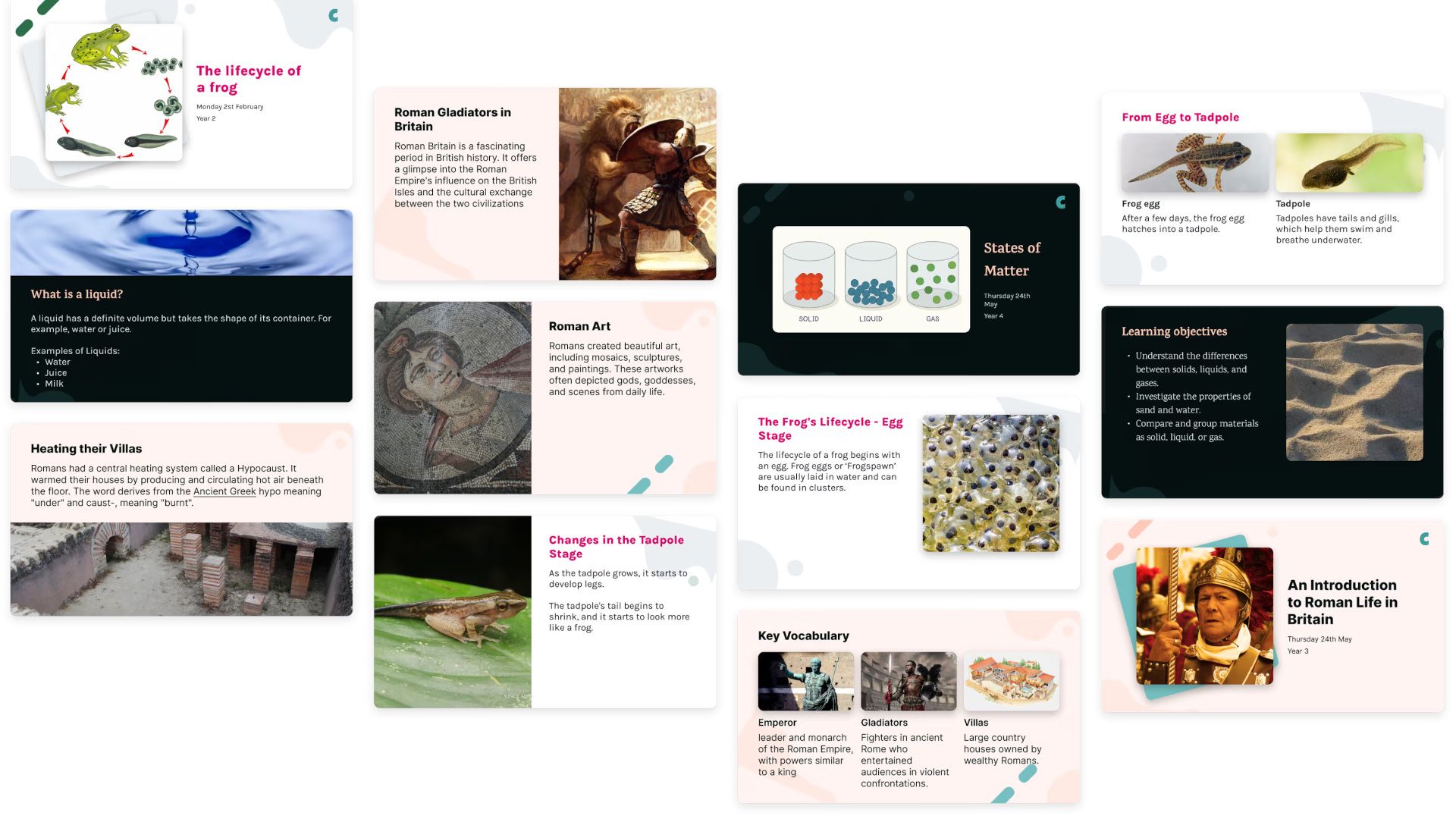
The output isn't just a written lesson plan. Chalkie creates a formatted slideshow with the teaching content, learning objectives, vocabulary, and activities already arranged into slides. The company says a complete lesson can be generated in under 30 seconds.
Once the lesson has been created, teachers can edit individual slides using plain-language instructions. You might ask Chalkie to simplify a section, add another slide, change an activity, or differentiate the content for a particular group of students.
An option to start with material you already have is available. Upload a document, PDF, or image, or paste a website URL, and Chalkie can use that information to create a new lesson or activity. Consequently, teachers don't necessarily have to abandon their existing resources to use the platform.
What are the best Chalkie features?
Ready-to-teach slides
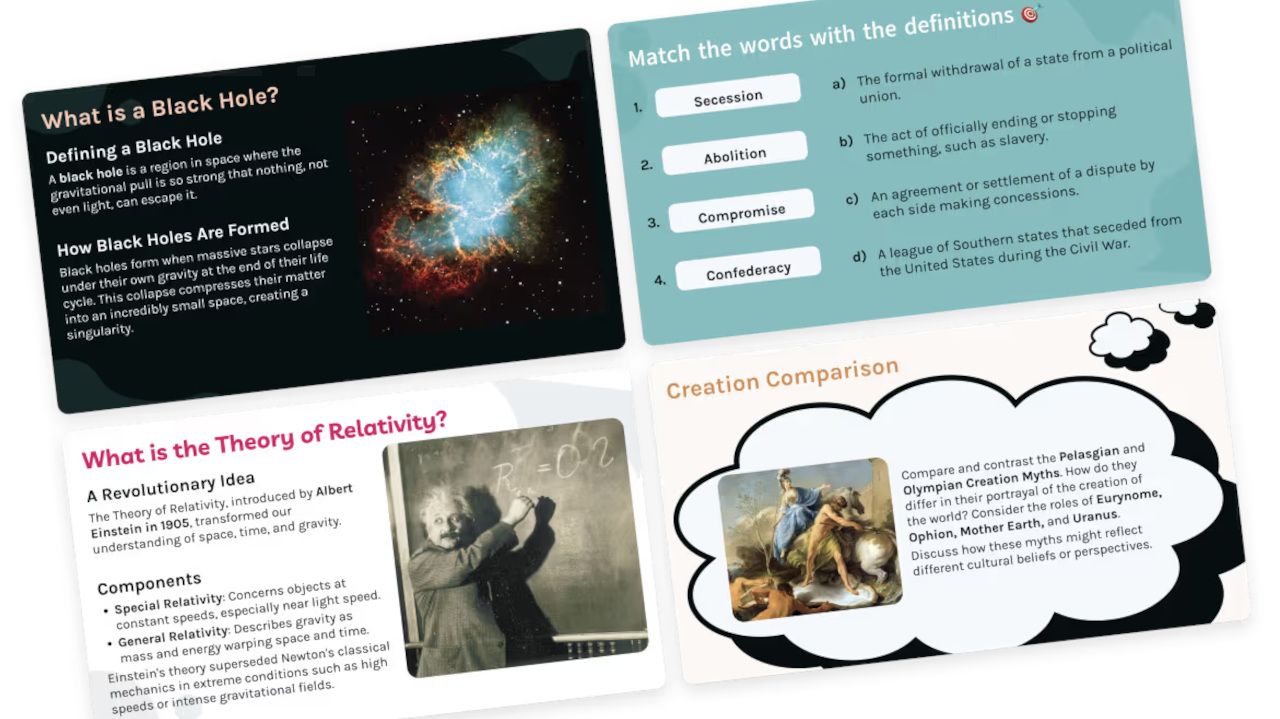
Chalkie produces an actual presentation rather than leaving teachers with a text-based lesson plan. Slides include objectives, vocabulary, activities, and visual material, and can be exported to Google Slides, PowerPoint, or PDF.
Standards alignment
Teachers can select U.S. curriculum frameworks including Common Core, NGSS, and TEKS, with Chalkie incorporating the selected standards into the lesson. It also supports C3 for social studies and curriculum frameworks in other countries.
Unit planning
Chalkie can create more than one lesson at a time. Its AI Unit Planner generates a sequence of lessons around a topic, including recap and quiz lessons, with the Pro plan supporting sequences of up to 12 lessons and Max extending that to 25.
Differentiated worksheets
Teachers can generate worksheets for a lesson and create Scaffold and Stretch versions to provide different levels of challenge. Worksheets can include formats such as multiple-choice, short-answer, and fill-in-the-blank questions.
AI editing
The built-in slide editor means teachers don't have to regenerate an entire lesson when only one part needs changing. Instructions can be given in plain English to simplify, extend, or restructure individual slides.
School sharing
The school version adds linked teacher accounts, resource sharing, administrative controls, and centralized billing. Chalkie also says it doesn't require student data, and that it is FERPA and COPPA compliant.
How much does Chalkie cost?
Chalkie has a Free plan that costs nothing and allows teachers to create five resources every seven days, with 10 AI edits per week. It also includes exports to Google and Microsoft formats.
The Pro plan costs $6.65 per month when paid annually, or $79.80 per year. It increases the allowance to 200 resources per month and 400 AI edits, while adding curriculum and standards alignment, YouTube videos, lessons of up to 25 slides and lesson series of up to 12 lessons.
The Max plan costs $12.99 per month, or $155.88 per year. It increases the allowance to 400 resources and 800 AI edits per month, supports lessons of up to 35 slides and lesson series of up to 25 lessons, and adds custom themes and fonts.
Chalkie doesn't publish a fixed price for its Schools plan. Instead, schools and districts can request a quote based on factors such as school size and number of staff. The school package adds linked teacher accounts, administrative controls, resource sharing, and centralized billing. Discounts are also available for districts and bulk licensing.
Chalkie Tips
- Start with the standard
If curriculum alignment matters for the lesson, select the appropriate framework before generating it. For U.S. teachers, that could mean Common Core, NGSS, TEKS, or C3, depending on the subject and state. - Give it useful context
A broad prompt will produce a broad lesson. Include the grade level, topic, learning objective, and anything particular you want students to understand or do, and you're more likely to get a useful first draft. - Edit before you teach
Chalkie can produce a lesson quickly, but that doesn't make it automatically suitable for your class. Check the facts, examples, difficulty, and activities, then change anything that doesn't fit your students or your teaching style. - Try a unit instead
If you're starting a new topic, use the Unit Planner rather than generating every lesson individually. Having the sequence in place first can make it easier to see how lessons connect and where recap or assessment belongs. - Use your existing resources
You don't have to start from scratch. Upload an existing document or provide a URL and use it as the basis for a new resource. This can be a better starting point when you already have material that reflects your school's curriculum or preferred approach.





 English (US) ·